
Groups
Manage collaboration through groups: create teams, invite members, and accept invites.
If you have no groups yet
If you navigate to Groups using the bottom navigation and you haven’t created any groups yet, you’ll see an empty state with a prompt to create your first group.
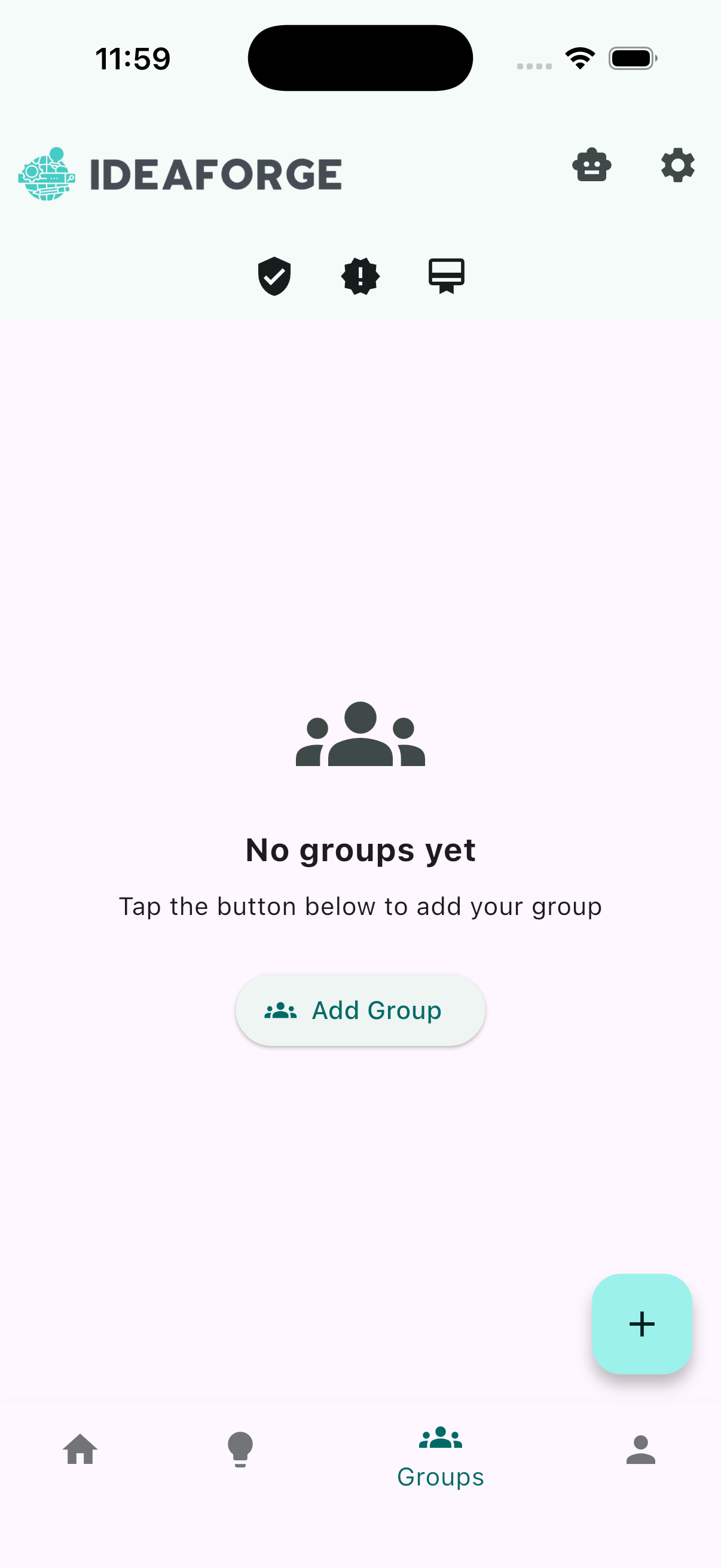
Create a new group
Tap the button to create a new group. You’ll be presented with a simple form to name your group and optionally add a description. When you’re ready, submit the form to continue.
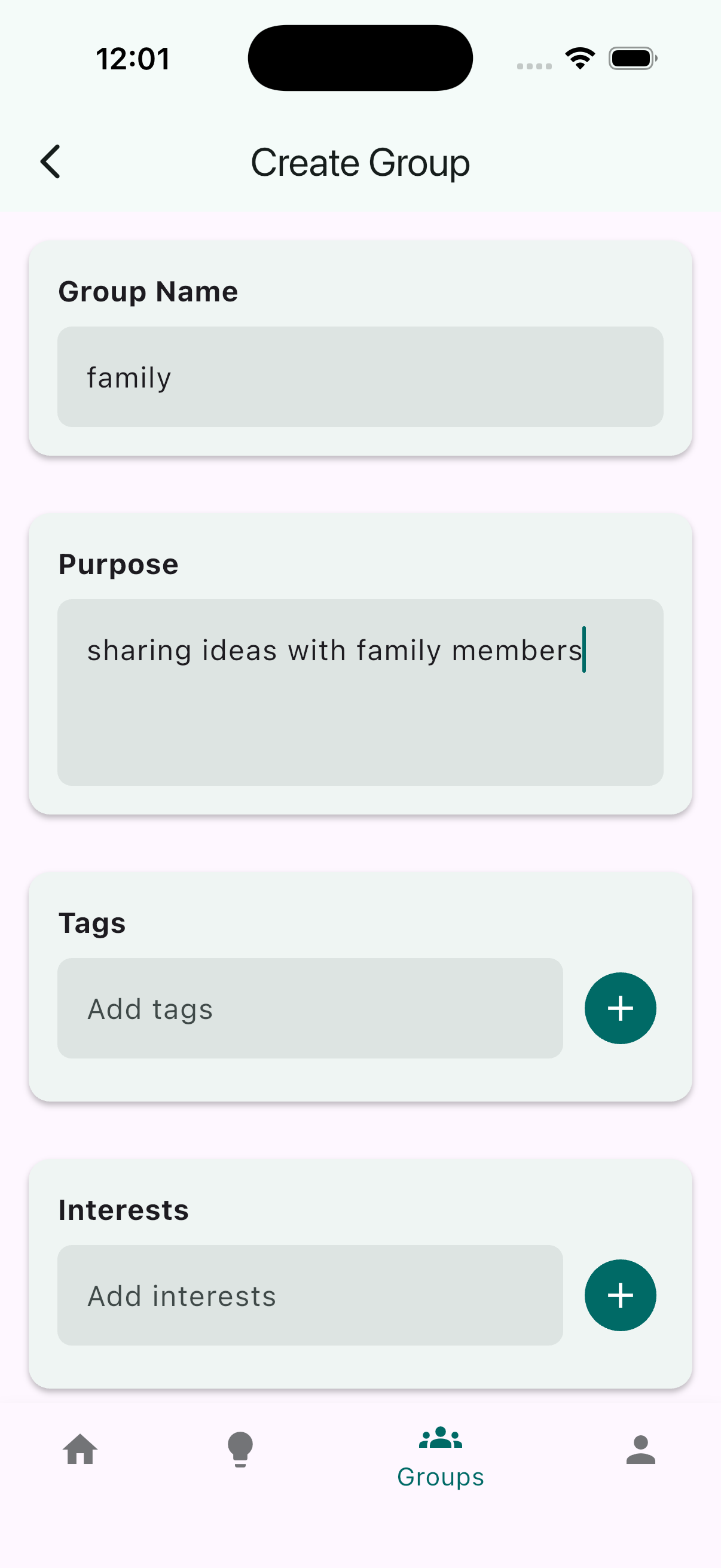
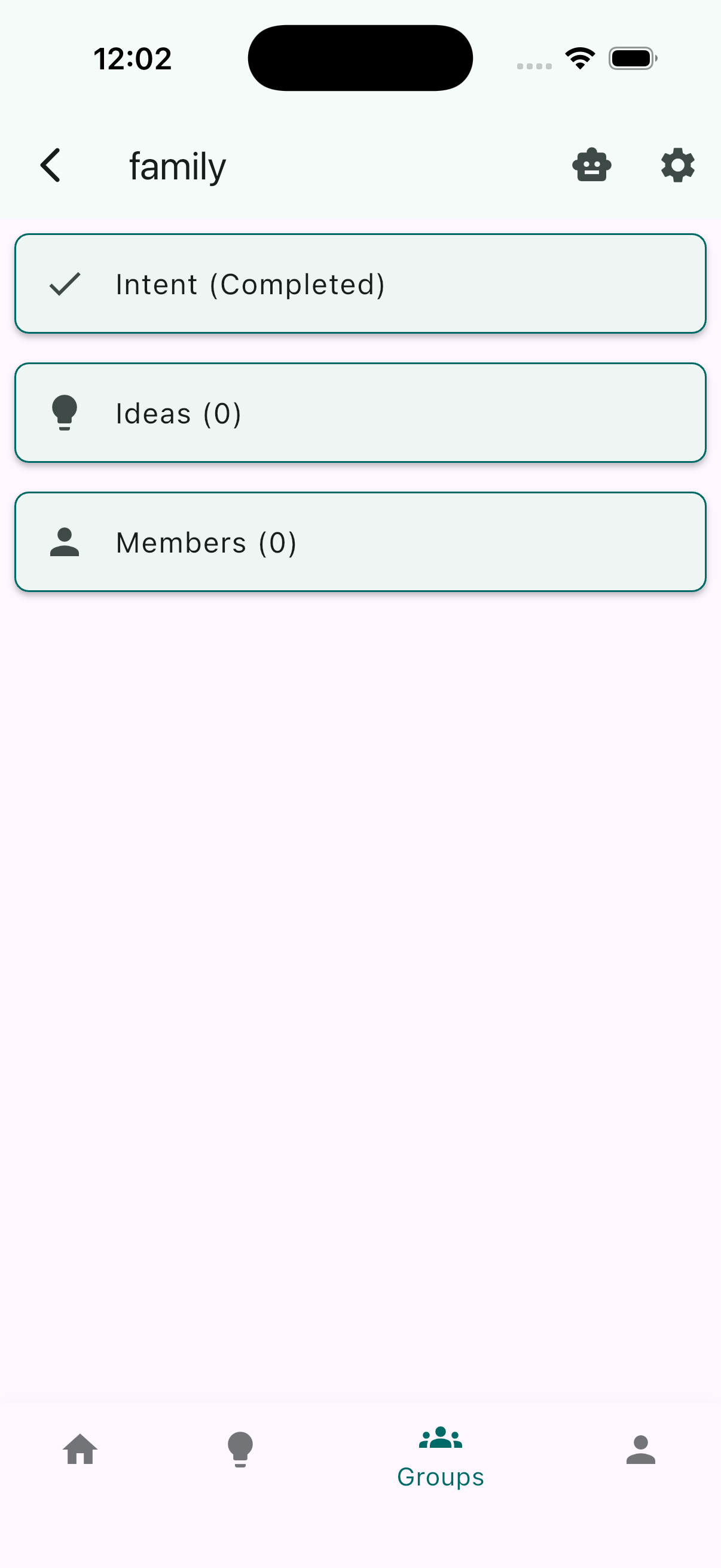
View a group
After you submit the form, you’ll be redirected to your newly created group. From here you can see group details, manage members, and start collaborating.
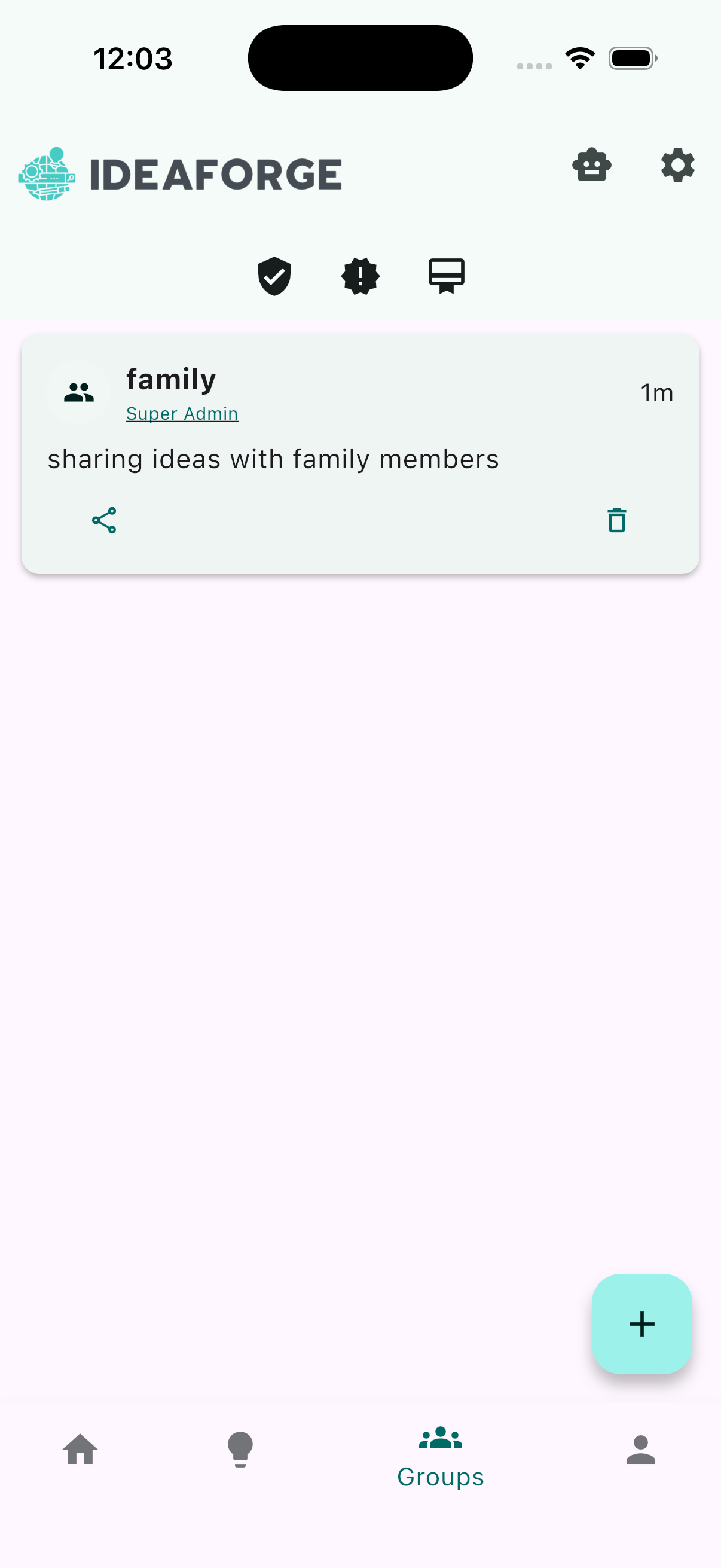
Overview: Groups list
Use the back button or the bottom navigation to return to the Groups list. Your new group now appears in the list so you can quickly open it again or create another.
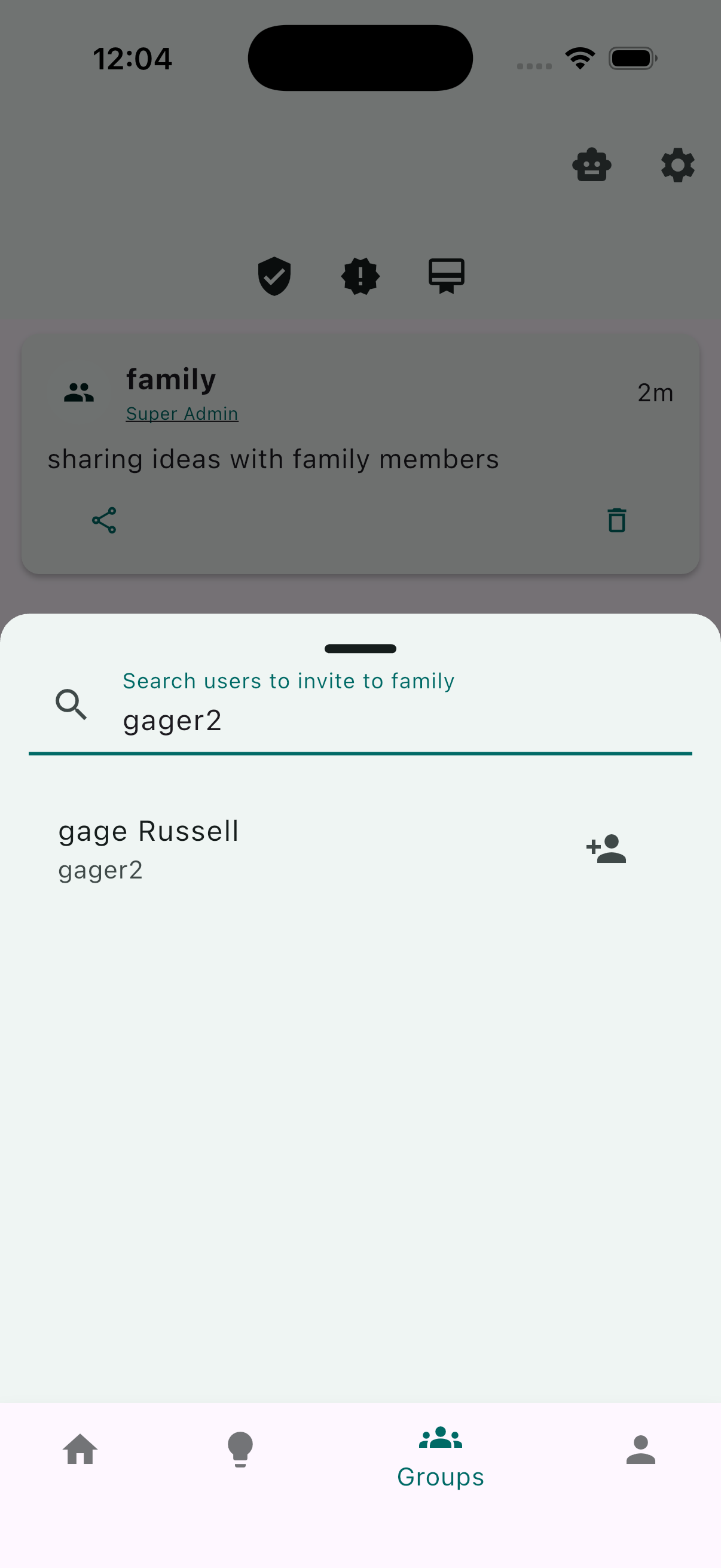
Share a group invite
From the group page, tap Share invite to copy a link or share through your device’s share sheet. Teammates can use this link to request access.
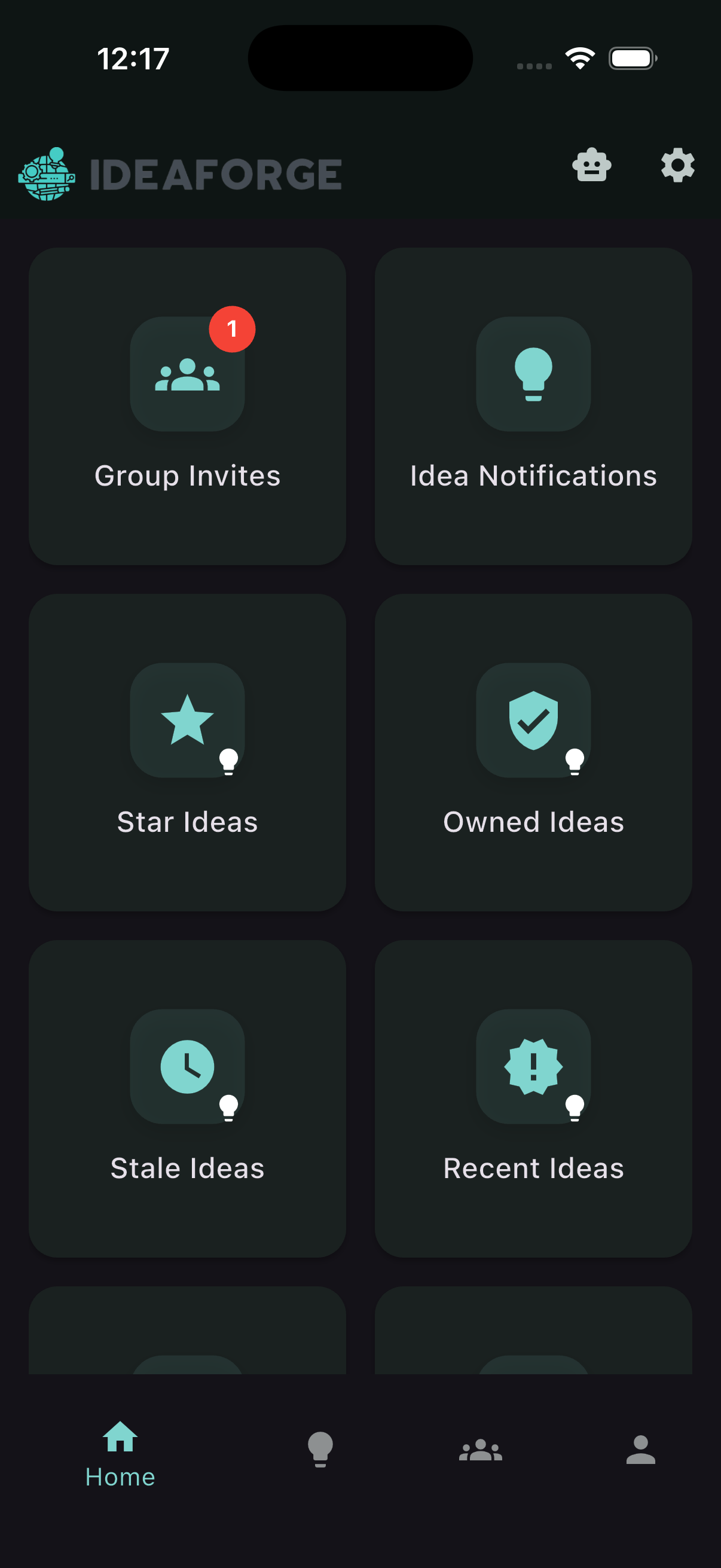
Invite notifications
When you’re invited to a group, you’ll receive a notification inside the app. Tap the notification to review the invite and respond.
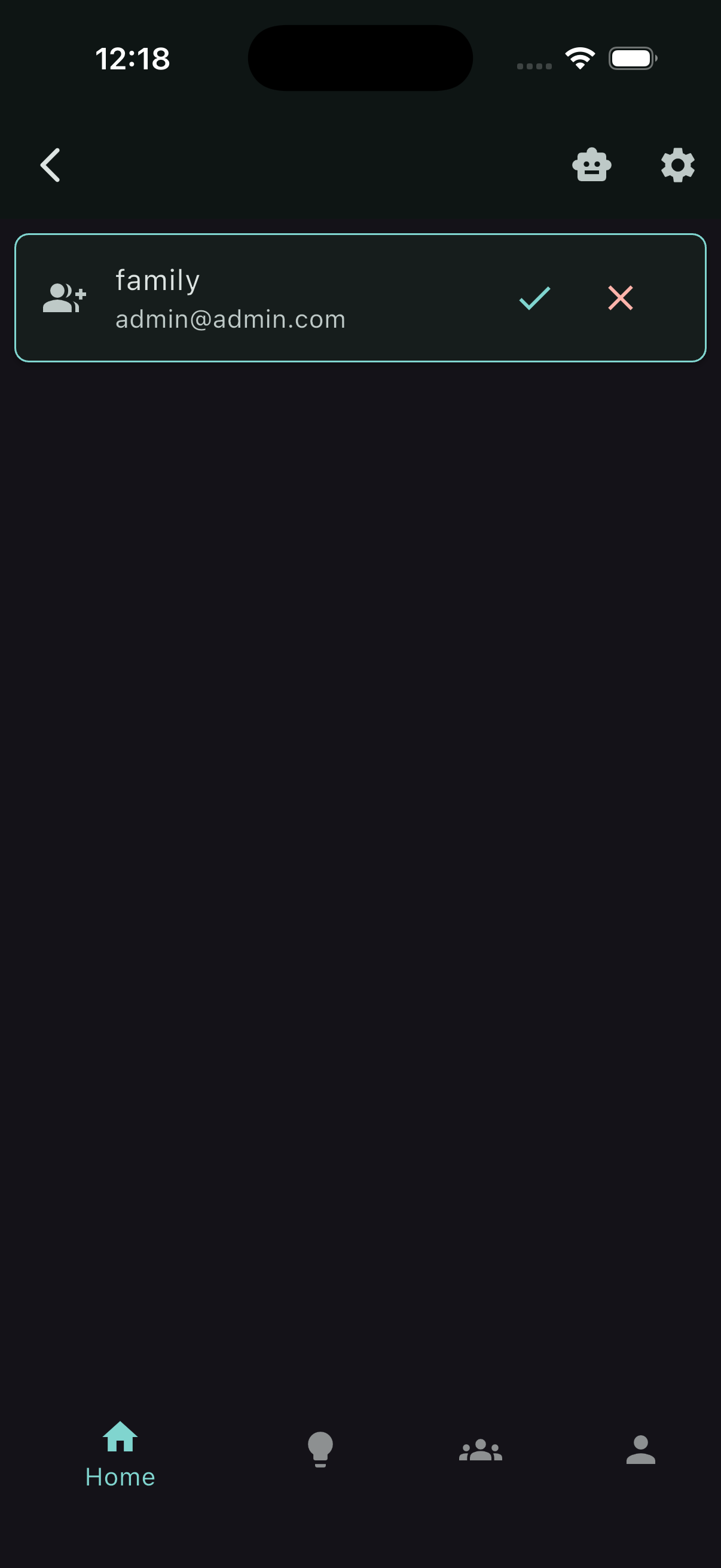
Accept a group invite
Open the invite and tap Accept to join the group. After accepting, the group will appear in your Groups list and you’ll have access to its content.
Delete a group
Only group owners can delete a group. You delete from the Groups list:
- Open the Groups list and find the group you want to delete.
- Tap the trash icon on that group’s card.
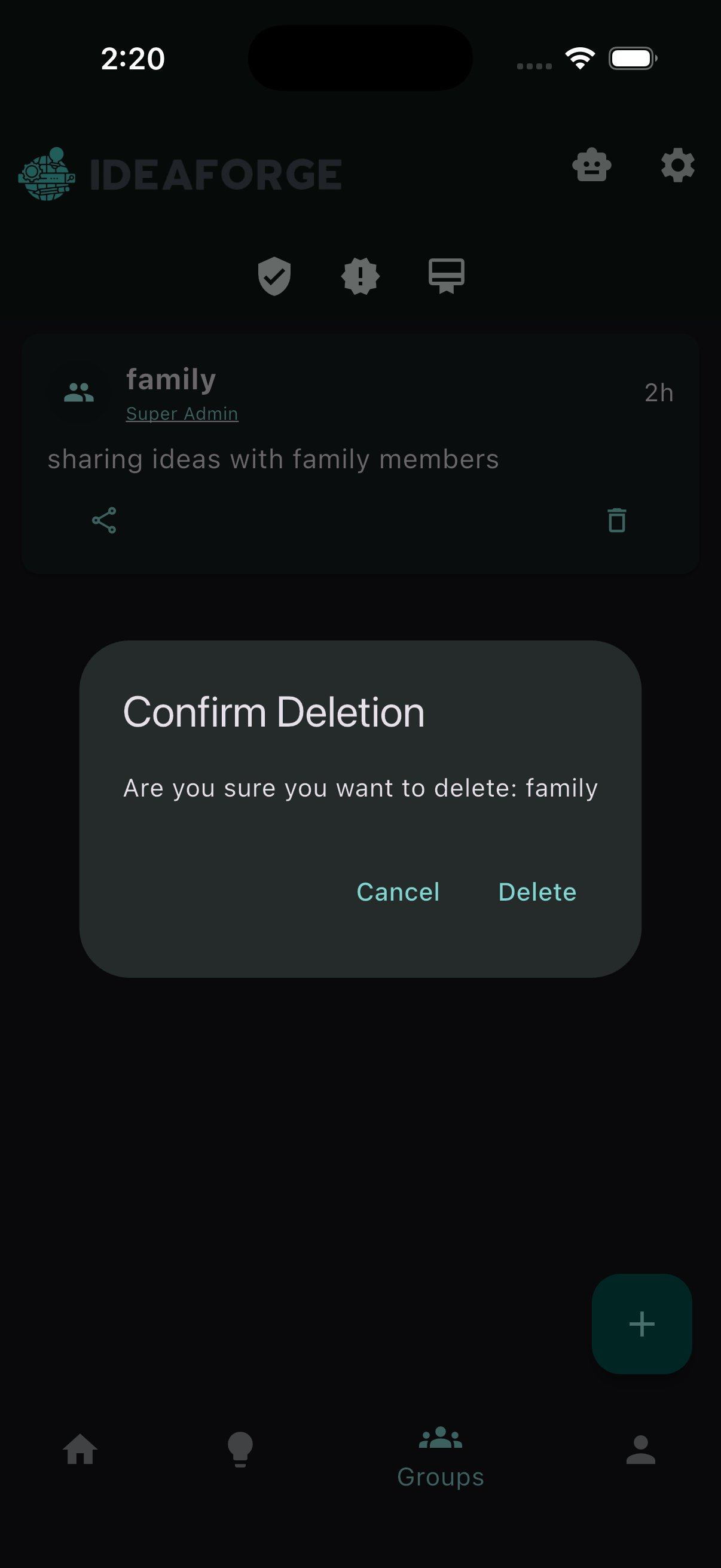
You’ll see a confirmation dialog. Deleting a group is irreversible.
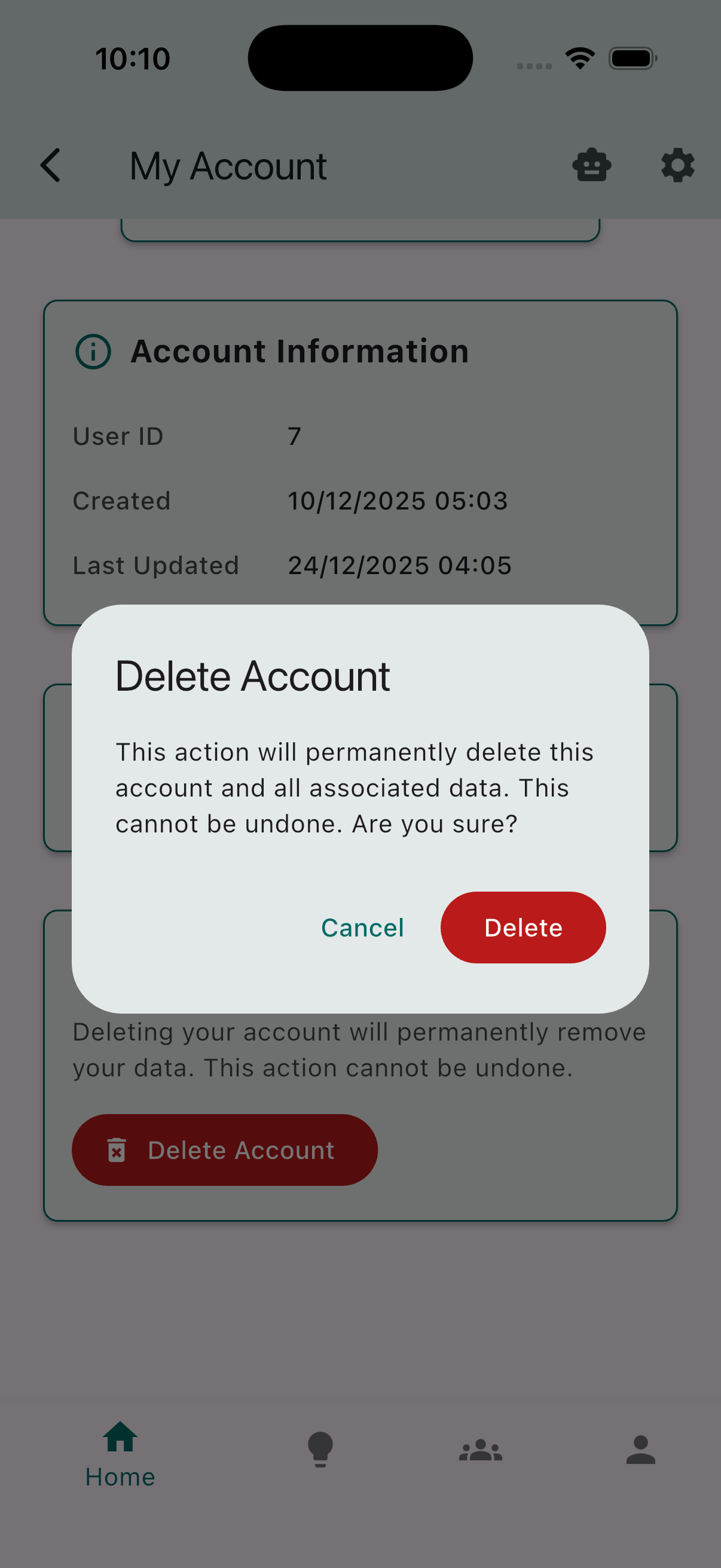
Access changes when deleting a group:
- What becomes inaccessible for former members:
- The group itself (its page, membership list, and group-only views).
- Ideas that were visible to them only because they were shared to this group. Those ideas will no longer appear unless the member has access through another group or a different share.
- What remains accessible:
- No ideas are deleted; each user’s own ideas remain in their account.
- Any ideas accessible to a member via another group or a direct share remain available through those paths.
Remove a group member
Group owners can remove members directly from the group page.
- Open the group.
- Find the member you want to remove and choose the remove option.
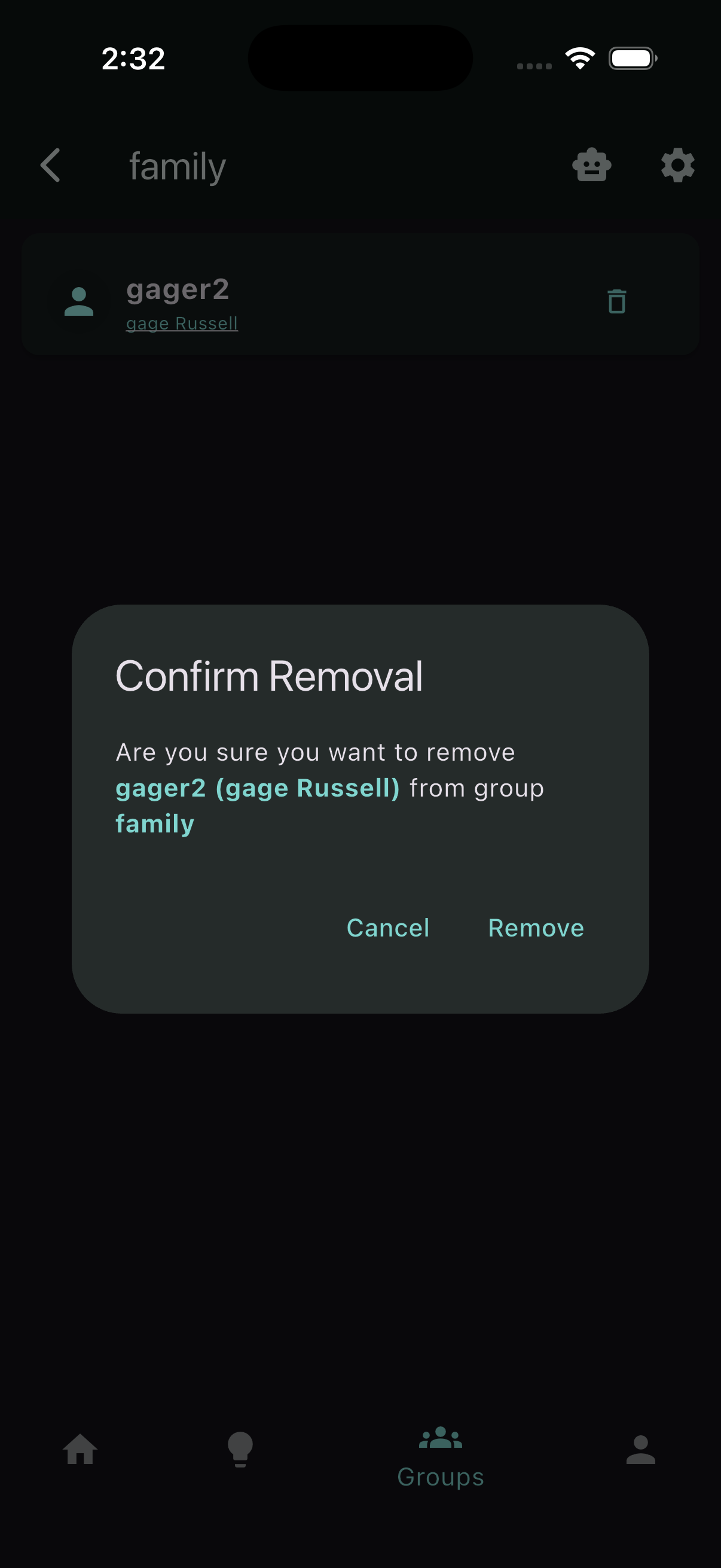
Access changes when removing a member:
- For the removed member:
- They lose access to content (ideas and other group-shared items) that is only available through this group.
- Anything they also have via another group or direct share remains accessible.
- For other members of the group:
- The removed person’s ideas stop being shared with the group and will no longer appear unless they continue sharing via another group or a different share.
- No ideas are deleted.
Leave a group
Non-owners see a “leave” option instead of delete. Leaving removes you from the group and stops sharing your ideas with its members.
- Open the Groups list and locate the group you want to leave.
- Tap the exit icon on that group’s card.
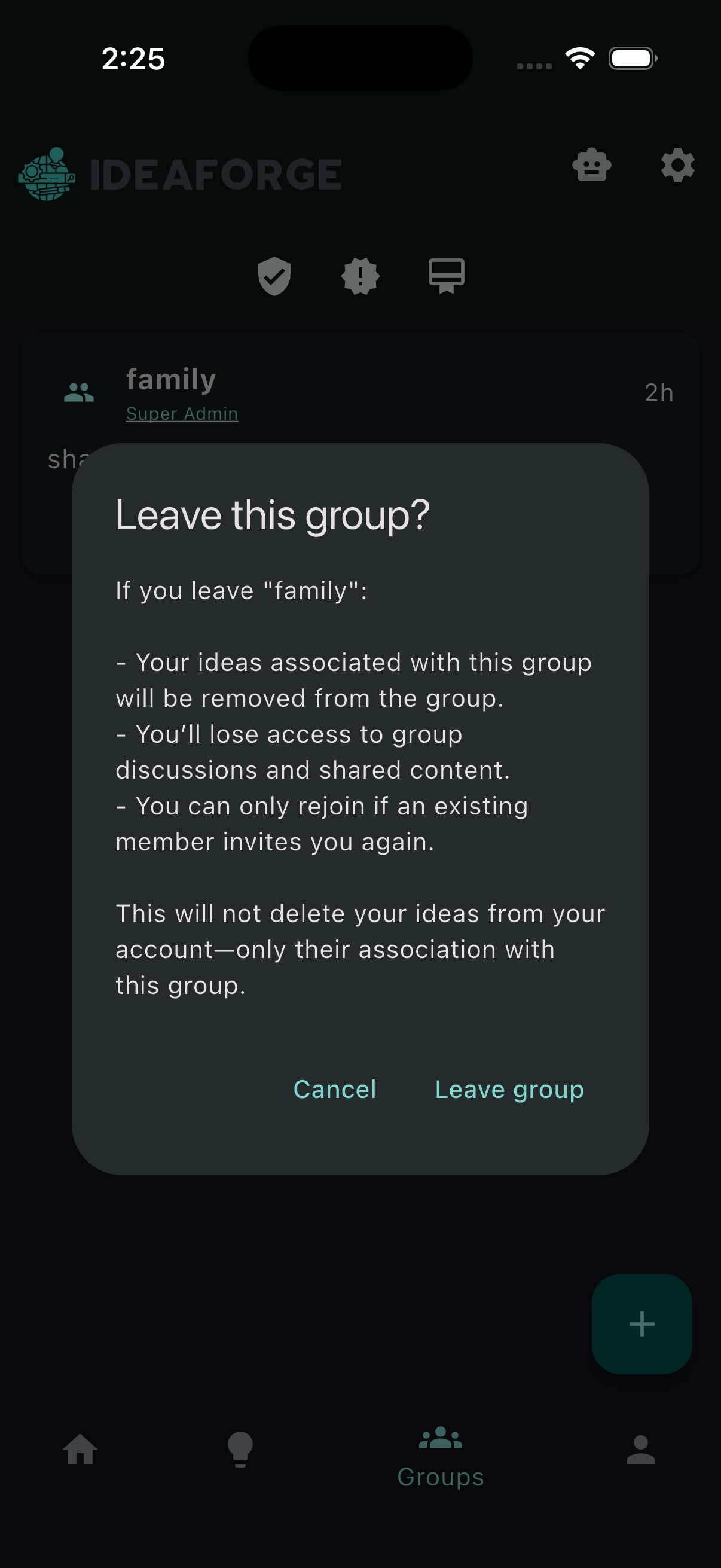
Access changes when you leave:
- For you (the leaving member):
- You lose access to content (ideas and other group-shared items) that is only available through this group.
- Anything you also have via another group or direct share remains accessible.
- For other members of the group:
- Your ideas stop being shared with the group and will no longer appear for its members unless you continue sharing via another group or a different share.
- No ideas are deleted.